In this article we will try to introduce you and walk you through a step by step Mahout Installation. Mahout is a Scalable Machine Learning library by Apache .
Introduction
In this article we will try to walk you through a step by step Mahout Installation. Mahout is a Scalable Machine Learning library by Apache . More here … http://mahout.apache.org/
Mahout in its current version has following categories of Algorithms and more …
- Collaborative Filtering
- User and Item based recommenders
- K-Means, Fuzzy K-Means clustering
- Mean Shift clustering
- Dirichlet process clustering
- Latent Dirichlet Allocation
- Singular value decomposition
- Parallel Frequent Pattern mining
- Complementary Naive Bayes classifier
- Random forest decision tree based classifier
- High performance java collections (previously colt collections)
And now over to the Author of the Article Varad Meru who is a huge BigData Enthusiast. His passion about leaning new technologies and sharing his knowledge is worth admiration. Please expect some more topics on Mahout from me and Varad in future .
And now over to Varad for his Installation guide.
Setting up Mahout in Eclipse
1. Download Mahout source from http://apache.techartifact.com/mirror/mahout/0.7/
direct link for the source zip file: http://apache.techartifact.com/mirror/mahout/0.7/mahout-distribution-0.7-src.zip
2. Extract from archive it.
3. Convert the project into eclipse project.
$ cd mahout-distribution-0.7
$ mvn eclipse:eclipse
Wait for a long time till it builds the eclipse project.
4. Now set the classpath variable M2_REPO of Eclipse to Maven 2 local repository
mvn -Declipse.workspace= eclipse:add-maven-repo
(Adding the path of the maven jars in eclipse)
5. Finally import the converted Eclipse project of Mahout.
Open File > Import > General > Existing Projects into Workspace from Eclipse menu.
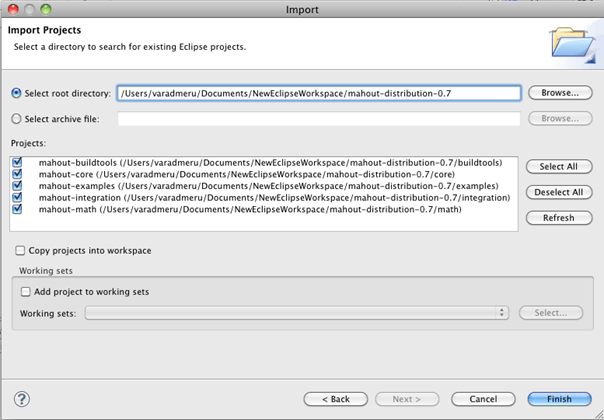
[NOT RELATED TO MAHOUT BUT FOR BUILDING JAVA APPLICATIONS WITH MAHOUT PROJECTS USED IN CLASS PATH]
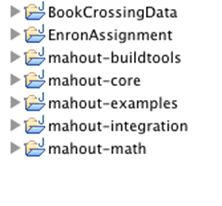
5. At first, generate a Maven project for sample codes on the Eclipse workspace directory.
$ mvn archetype:create -DgroupId=com.orzota.mahout.recommender -DartifactId=recommender
The name of the project created is “recommender” in the workspace directory
6. Convert the newly created java project into eclipse project
$ cd recommender
$ mvn eclipse:eclipse
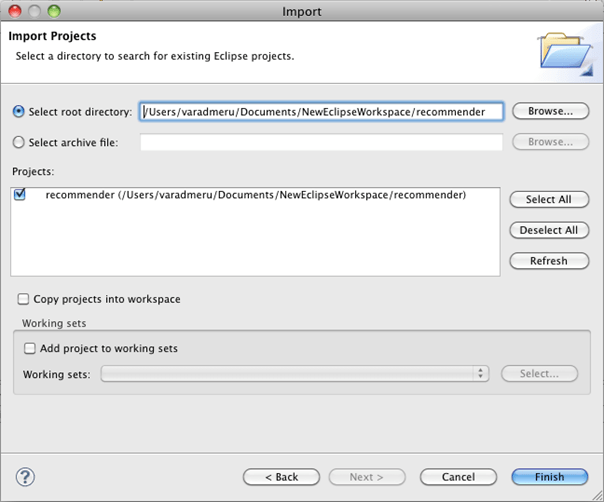
7. Import the project into eclipse
Open File > Import > General > Existing Projects into Workspace from Eclipse menu and select the ‘recommender’ project.
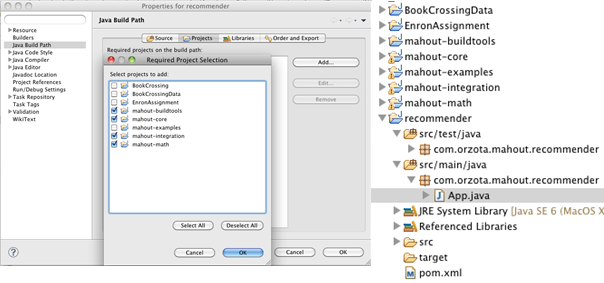
The Folder structure looks like the below. Now we can build apps using the Mahout
8. Right click the ‘recommender’ project, select Properties > Java Build Path > Projects from pop-up menu and click ‘Add’ and select the below Mahout projects.
Conclusion
We were able to configure Mahout Source Code for directly accessing and debugging our program programmatically from eclipse and help us to run mahout programs from eclipse itself.
To directly build the -jar- of mahout
1. Download Mahout source from http://apache.techartifact.com/mirror/mahout/0.7/
direct link for the source zip file: http://apache.techartifact.com/mirror/mahout/0.7/mahout-distribution-0.7-src.zip
2. Extract from archive it.
3. Install the maven project to get the distributable jar.
$ cd mahout-distribution-0.7
$ mvn -DskipTests install
In my case it created the jar in the maven repository itself. I checked if this is internally used by eclipse or not (as we have set the class path of the Maven repository in eclipse). By doing a “Fix Project Setup”, it got the correct packages for the Hadoop and Mahout classes. You could also pick up the jar and directly add the jar as a library import to ease the operations.

 Tutorials for Data Science , Machine Learning, AI & Big Data
hi shantanu,
hi,
i am a newbie to mahout(0.7).i am able to successfully create a model by the command below:-
bin/mahout trainnb -i /user/cloudera/MahoutWeighted/1_FactWt-train-vectors -el -o /user/cloudera/MahoutWeighted/model -li /user/cloudera/MahoutWeighted/labelindex -ow
….
but i am unable to use that model…when i am feeding the model with test data in the same way,i trained it..i am not able to get the correct confusion matrix..can you please tell me how to use the model created..it would be a great help to me
LikeLike
Hi,
Thanks for detailed explanation for running the project.
I am facing few issues. When I try to all the projects (buildtools, core, integration and math) as mentioned in step 8, I get the error saying “Setting build path: could not write file ./home/Downloads/mahout/recommender/.classpath”. I google for quite some time but could not get much help. I am a newbie to ubuntu, any help comments and suggestions will be of great help.
LikeLike
Hi,
I want to settup Mahout in eclipse for windows user but this tutorial is dedicated to linus users. Can you help me to find such tutorial which explain the configuration step by step?
Thank you for help !
LikeLike
After reading this blog i very strong in this topics and this blog really helpful to all… explanation are very clear so very easy to understand… thanks a lot for sharing this blog
LikeLike